How to Install a Free SSL Certificate on Dahua DSS Using Let's Encrypt
Dahua DSS requires an SSL certificate to enable secure HTTPS access. This guide explains the Dahua DSS SSL Setup, including how to generate a free SSL certificate using Let’s Encrypt, verify the domain via DNS (Nameserver method), and convert the SSL files into a format compatible with DSS.
In this Post take www.dsskenya.pro or dsskenya.pro as out sample domain
Step 1: Generate SSL Certificate Using Let's Encrypt
-
Install Certbot from https://certbot.eff.org and select Windows & IIS.
-
Open Command Prompt as Administrator and run:
certbot certonly --manual --preferred-challenges dns --key-type rsa -d dsskenya.pro -d www.dsskenya.pro- The
--key-type rsaensures the generated private key is RSA-based, which is required by DSS.
- The
-
Certbot will prompt you to create a DNS TXT record for verification. It will look something like this:
Please create a TXT record with the following details: Name: _acme-challenge.dsskenya.pro Type: TXT Value: "PaLA0Uz0NMeVOfFssfdsAF96CZcQdpcIeMhO4Z7B2s0" -
Log in to your DNS provider (e.g., Hostinger) and add a new TXT record:
-
Host/Name:
_acme-challenge.dsskenya.pro -
Type:
TXT -
Value:
"PaLA0Uz0NMeVOfFssfdsAF96CZcQdpcIeMhO4Z7B2s0" -
TTL:
Autoor300(5 minutes)
-
-
Wait for DNS propagation (5–30 min) and verify using:
nslookup -type=TXT _acme-challenge.dsskenya.proor check https://www.whatsmydns.net
-
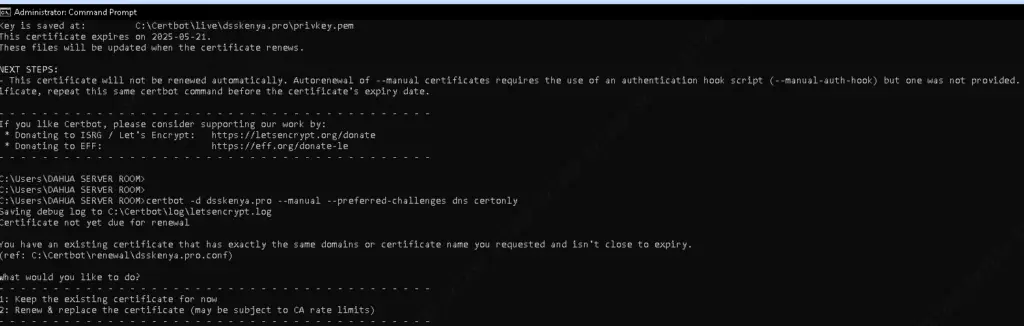
Once the TXT record is globally available, press Enter in Certbot to complete verification.
Step 2: Convert Let's Encrypt Files for Dahua DSS
After successful verification, Certbot generates the following files in: 📂 C:\Certbot\live\dsskenya.pro\
| File | Purpose |
| --- | --- |
| privkey.pem | Private Key (must be RSA) |
| cert.pem | Domain Certificate |
| chain.pem | Intermediate Certificate |
| fullchain.pem | Full Chain Certificate |
1. Merge the Certificate and Chain
Run the following command to combine cert.pem and chain.pem into **ca_certificate.crt**:
copy cert.pem + chain.pem ca_certificate.crt
2. Convert Private Key to DSS Format
Dahua DSS requires a password-protected RSA key, so convert privkey.pem into private.key:
openssl rsa -in privkey.pem -out private.key -passout pass:YourPassword
🔹 Replace **YourPassword** with the actual password you want to use in DSS.
Step 3: Upload SSL Certificate to DSS
-
Open DSS Web Interface.
-
Navigate to System Settings > Network > HTTPS Settings.
-
Upload the following files:
-
CA Certificate:
ca_certificate.crt -
Private Key:
private.key -
Enter Password (set in Step 2).
-
-
Enable HTTPS & Restart DSS.
Step 4: Verify HTTPS Connection
-
Open
**https://dsskenya.pro**in a browser. -
Check if DSS loads securely with SSL.
-
Ensure HTTPS is enforced and no SSL errors appear.
Conclusion
By following this guide, you have successfully installed a Let’s Encrypt SSL certificate for Dahua DSS, ensuring secure HTTPS access. Since Let’s Encrypt certificates expire every 90 days, set up auto-renewal or repeat this process periodically.
💡 Tip: Use a cron job or Windows Task Scheduler to automate SSL renewal.
🚀 Now DSS is secure with free SSL! Let us know if you need any help. 🎉

Need help with a CCTV, access control, or security systems project? Explore my security & surveillance services or get in touch.