How to View RTSP Streams with VLC Media Player
Introduction
Dahua RTSP stream VLC setup allows users to stream live video from Dahua IP cameras directly to a media player like VLC. This guide provides step-by-step instructions on setting up and accessing Dahua RTSP streams using VLC Media Player.
Prerequisites
Before you begin, ensure you have the following:
- VLC Media Player (Download from the official VLC website)
- Dahua IP Camera Online and accessible on your network
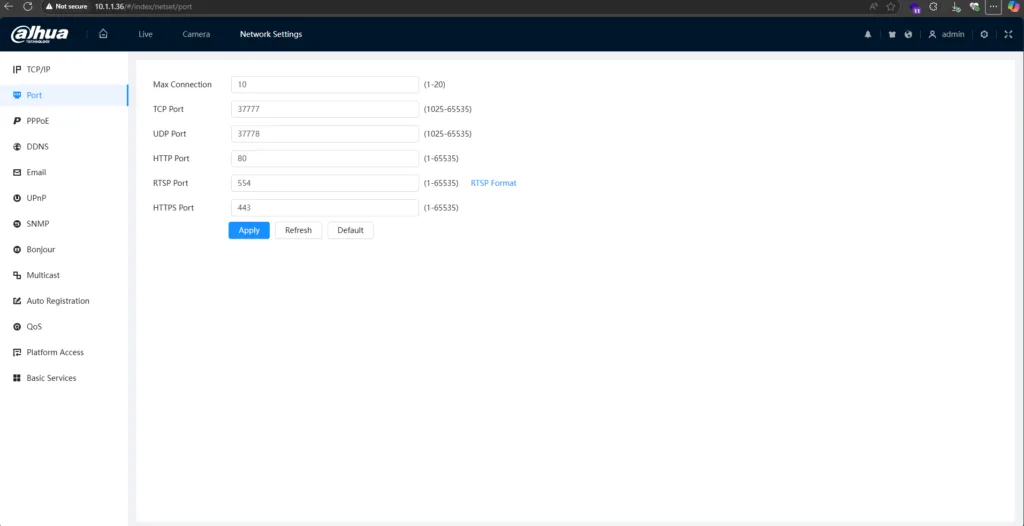
- RTSP Port Open (default is 554; ensure firewall/router settings allow traffic)
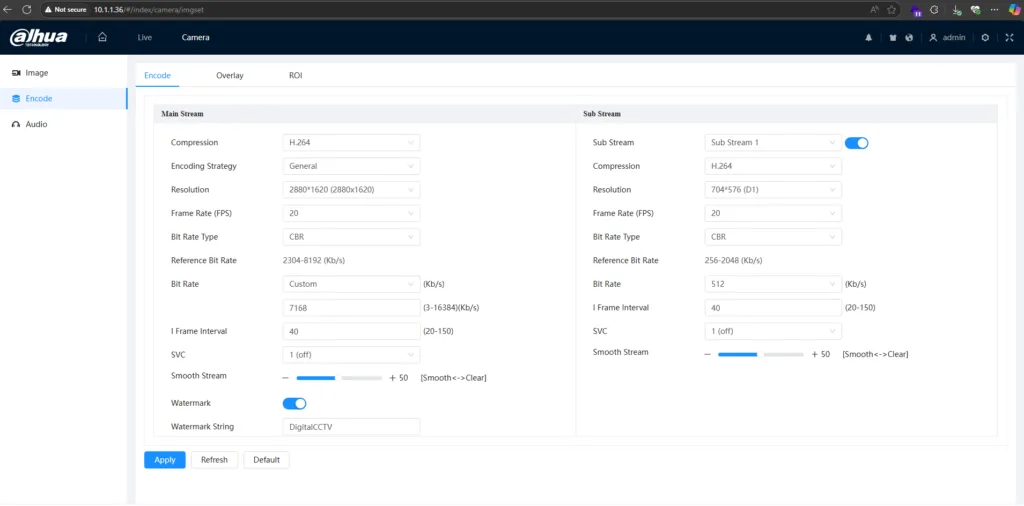
- H.264 Encoding Enabled (RTSP does not support H.265)
- Camera Feed Bit Rate set to 4096 Kbps or lower
- Smart Codec Enabled (if using H.264, for optimized streaming)
Example Dahua RTSP URLs
Here are some common RTSP URL formats for accessing a Dahua IP camera stream:
-
Main Stream:
rtsp://admin:admin123@10.1.1.14:554/cam/realmonitor?channel=1&subtype=0 -
Sub Stream:
rtsp://admin:admin123@10.1.1.14:554/cam/realmonitor?channel=1&subtype=1 -
Third Stream (if available):
rtsp://admin:admin123@10.1.1.14:554/cam/realmonitor?channel=1&subtype=2
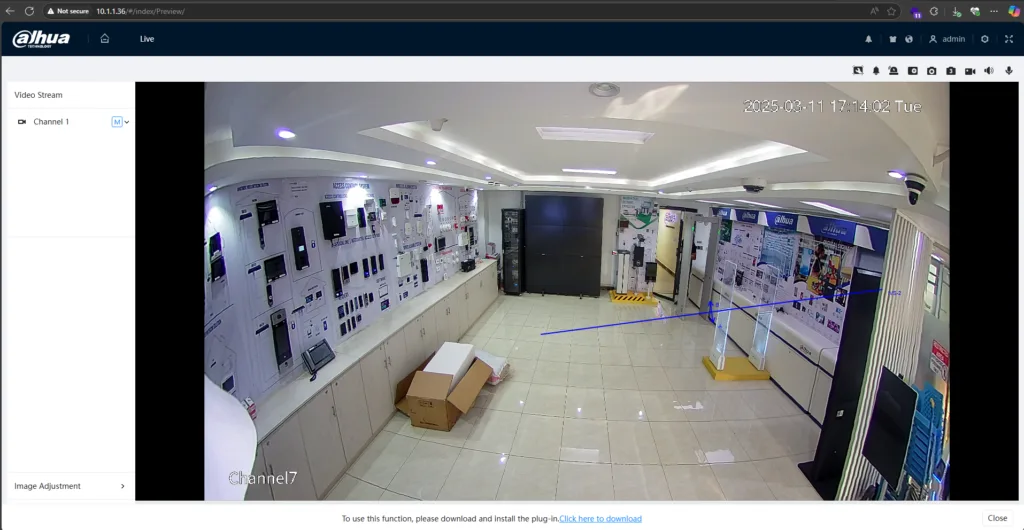
Step-by-Step Guide to Viewing Dahua RTSP Streams on VLC
Follow these instructions to stream RTSP video using VLC:
Step 1: Download and Install VLC
-
Go to the VLC Media Player Homepage
-
Download and install VLC for your operating system.
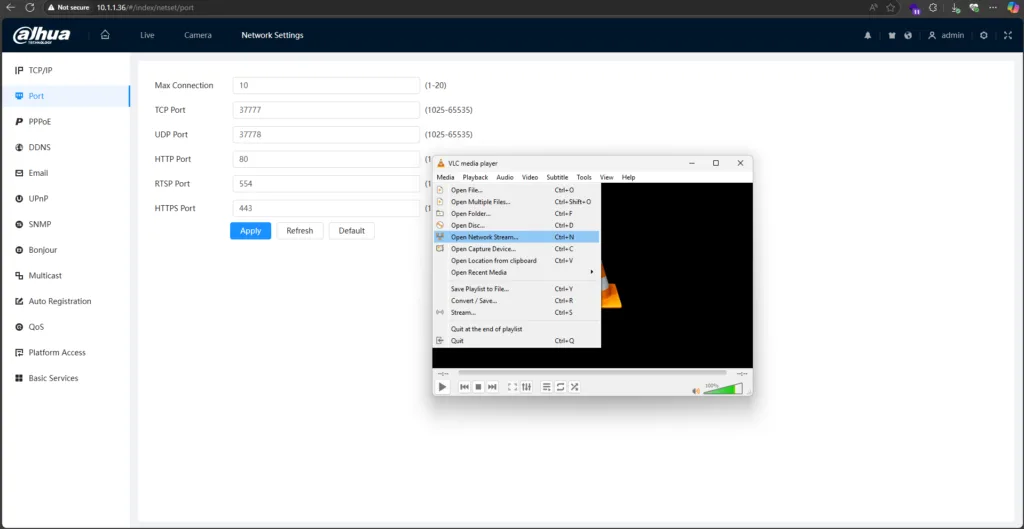
Step 2: Open Network Stream in VLC
-
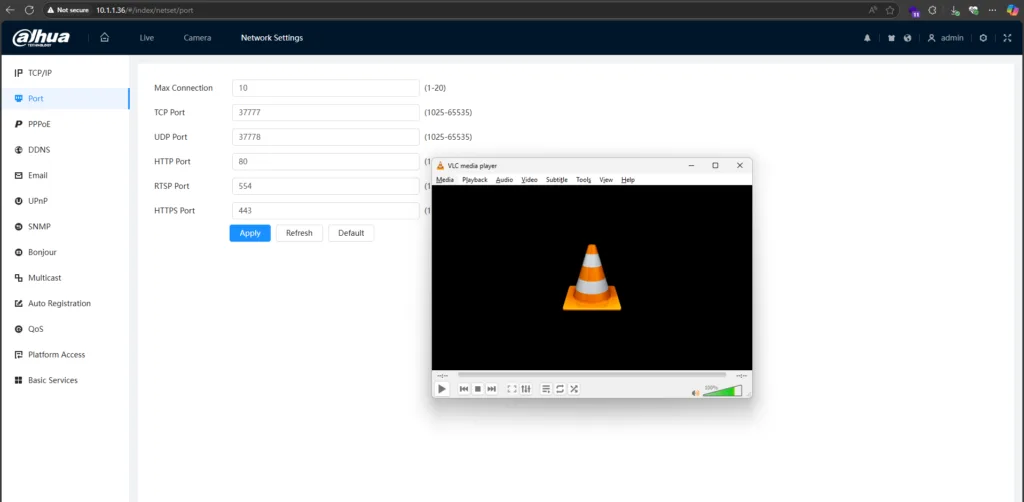
Launch VLC Media Player.
-
Click on Media → Open Network Stream (or press
Ctrl + N).
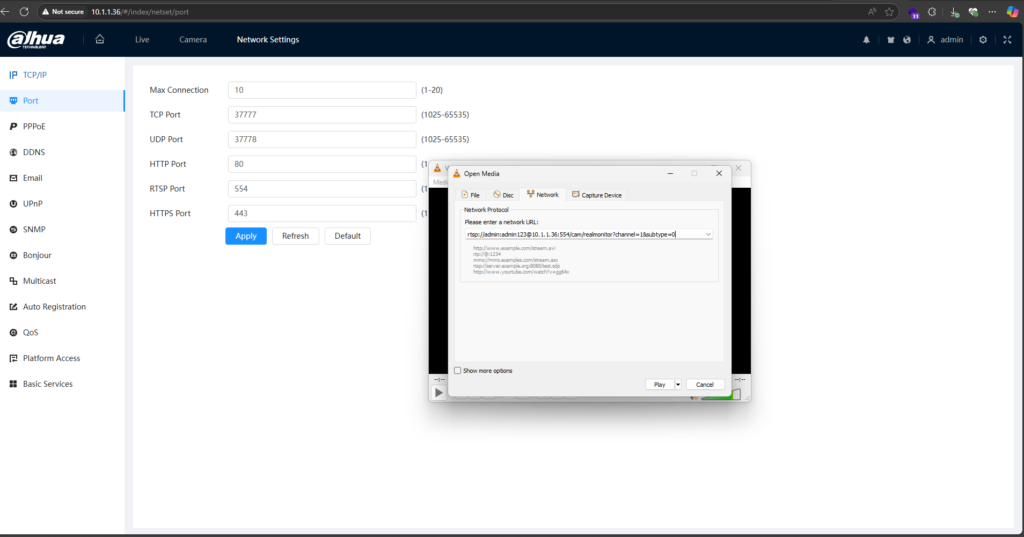
Step 3: Enter RTSP URL
-
In the Network tab, input the Dahua RTSP stream URL (refer to the examples above).
-
Ensure you enter the correct IP address, username, and password (if required).
Step 4: Start Streaming
-
Click the Play button.
-
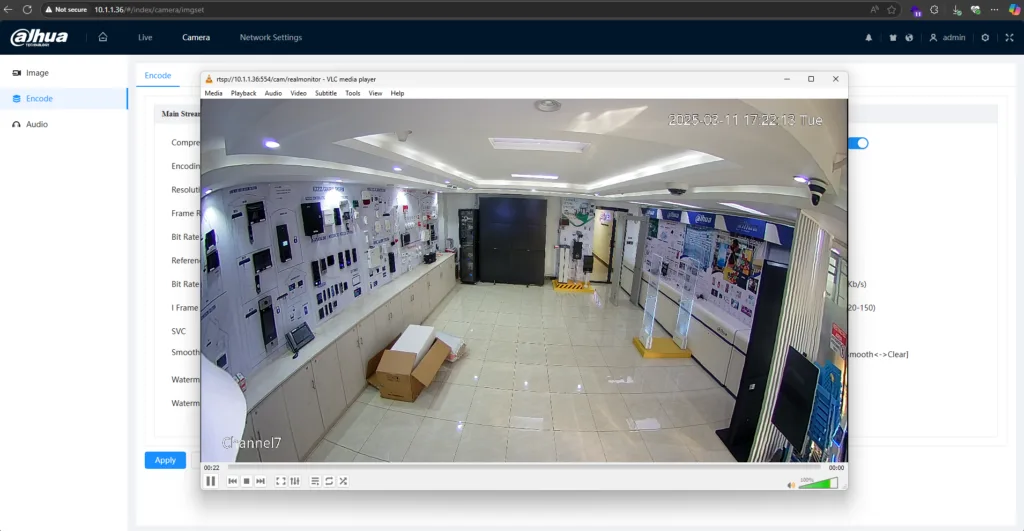
The live stream from your Dahua IP camera should now display in VLC.
Understanding Dahua RTSP URL Syntax
Each Dahua RTSP URL follows a specific format:
rtsp://<username>:<password>@<IP>:<port>/cam/realmonitor?channel=<channel>&subtype=<subtype>
-
**<username>**: Camera login username. -
**<password>**: Corresponding password (avoid special characters like#). -
**<IP>**: The IP address of your Dahua IP camera. -
**<port>**: Default is554(omit if unchanged). -
**<channel>**: Camera channel number (1for most cases). -
**<subtype>**: Stream type (0for main stream,1for sub-stream,2for third stream).
Example:
If streaming the sub-stream from channel 1, the URL would be:
rtsp://admin:admin123@10.1.1.14:554/cam/realmonitor?channel=1&subtype=1
Additional Information
-
Transmission Modes: Dahua RTSP supports both TCP and UDP.
-
Authentication Methods: Basic and Digest authentication are supported.
-
Changing RTSP Port: If the RTSP port is modified, update the URL accordingly.
Finding the RTSP Port for Your Dahua IP Camera
Most Dahua IP cameras allow users to check the RTSP port in the web interface. Log in to your camera’s admin panel and locate the RTSP settings under the network configuration section.
Conclusion
Using RTSP with VLC is a simple and effective way to stream live video from your Dahua IP camera. By following the steps outlined above, you can set up and access your camera feed seamlessly. If you encounter issues, double-check your RTSP URL syntax, authentication details, and network settings.
For further assistance, refer to VLC’s official documentation or consult Dahua’s support page.
Need Help?
If you’re stuck or need additional assistance, feel free to email at hello@mwando.ke or WhatsApp at +254712724949.
Learn more about me or view more inspiring stories and educational content here.
Need help with a CCTV, access control, or security systems project? Explore my security & surveillance services or get in touch.